Main content
1. ls: List directory contents
In short: Show what’s in a folder. Why: Quickly see files and subfolders before you act.
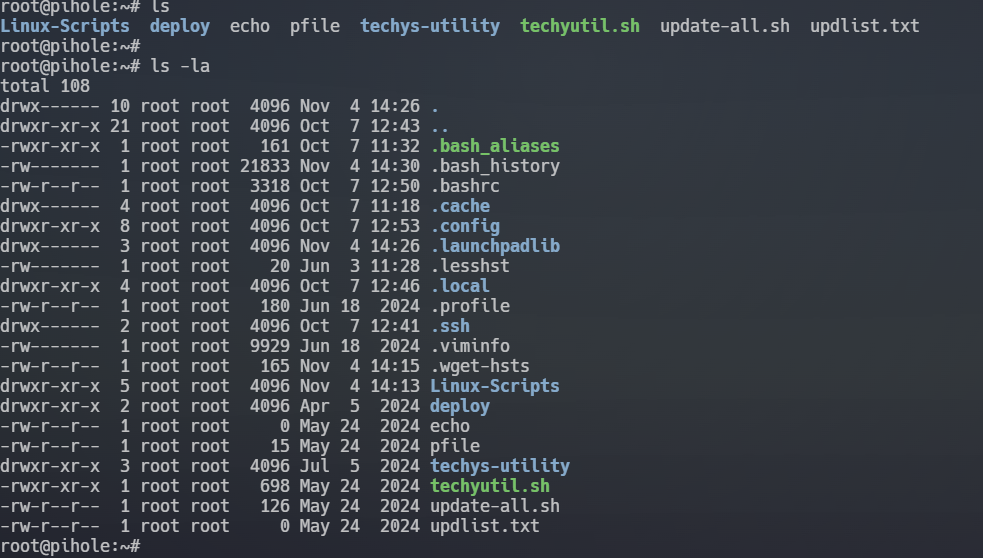
ls /home/$USERls -l /home/$USERls -lah 2. cd: Change directory
In short: Move to a different folder. Why: Get to where your files are to run commands there.
cd ~cd /var/logcd ..cd -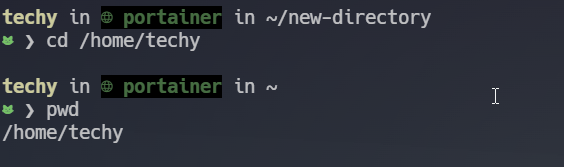
3. pwd: Print working directory
In short: Show where you are. Why: Avoid mistakes by confirming your current path (useful in scripts too).
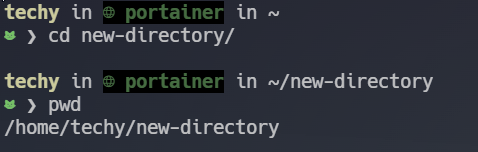
pwd 4. mkdir: Create a new directory
In short: Make a new folder. Why: Organize projects and files into tidy places.
mkdir projectsmkdir -p projects/javascript/project-1mkdir dir1 dir2 dir3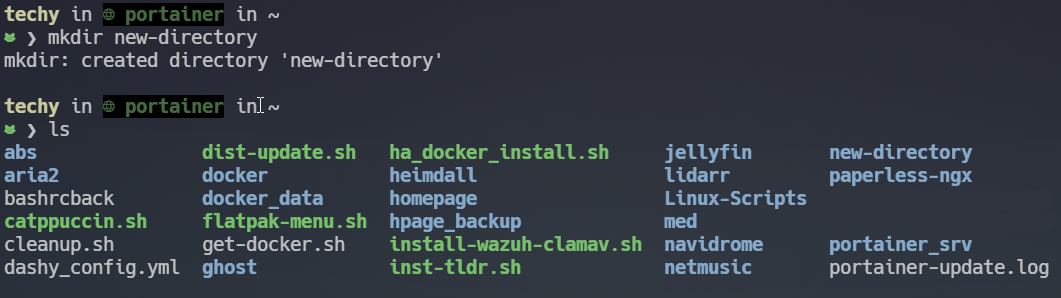
5. rm: Remove a file or directory
In short: Delete files or folders. Why: Clean up clutter or remove things you no longer need.
rm file.txtrm -r myfolderrm -rf unwanted-folderrm -i filename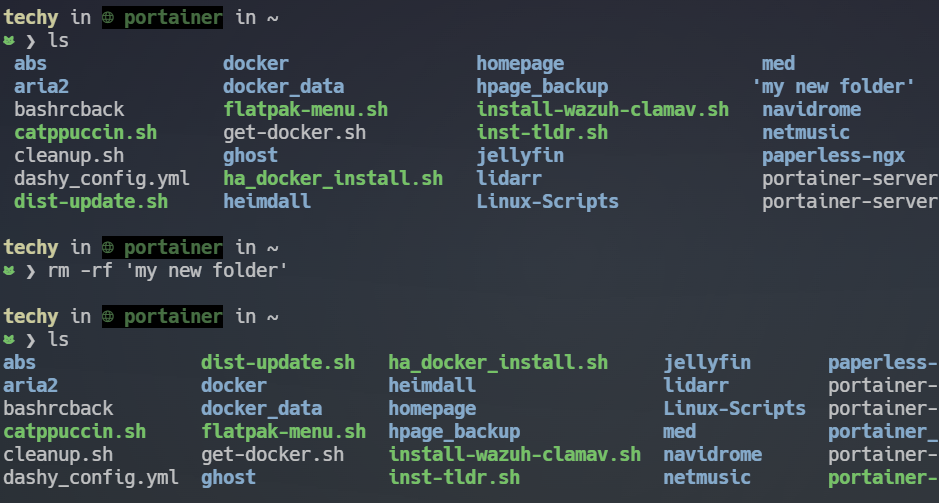
6. cp: Copy a file or directory
In short: Make a duplicate. Why: Back up files or copy them to other locations.
cp file.txt file.backup.txtcp file.txt /tmp/cp -r folder1 folder2cp -a folder1 folder1-backup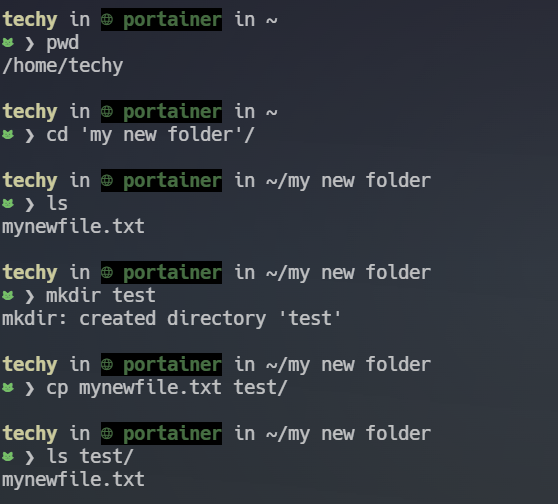
7. mv: Move or rename a file or directory
In short: Move or rename files/folders. Why: Keep things organized or change names safely.
mv oldname.txt newname.txtmv file.txt ~/documents/mv file1.txt file2.txt ~/backup/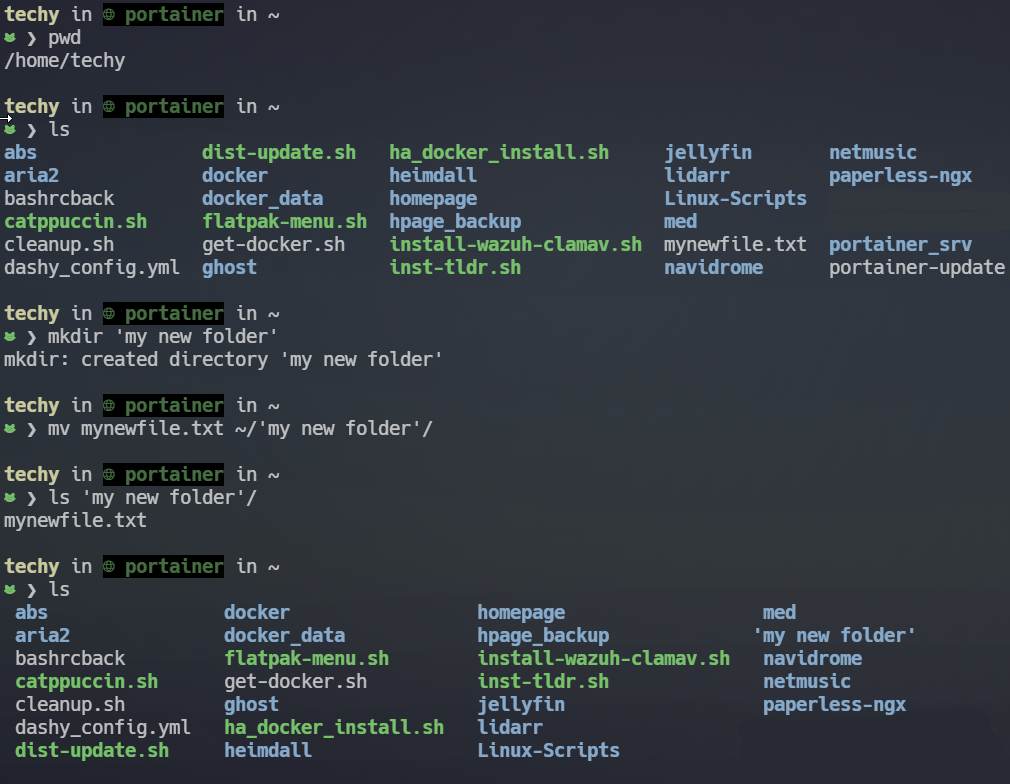
8. touch: Create a new file
In short: Create a blank file fast. Why: Start a new file or trigger tools that watch timestamps.
touch notes.txttouch existing-file.txttouch a.txt b.txt c.txt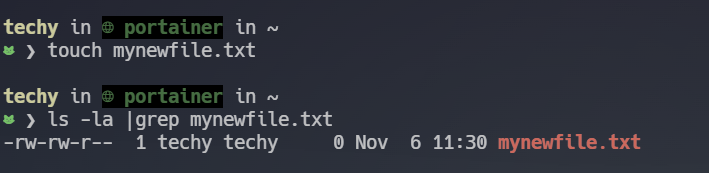
9. cat: Display the contents of a file
In short: Show a file’s text. Why: Quickly read or combine files right in the terminal.
cat file.txtcat file1.txt file2.txtcat -n file.txt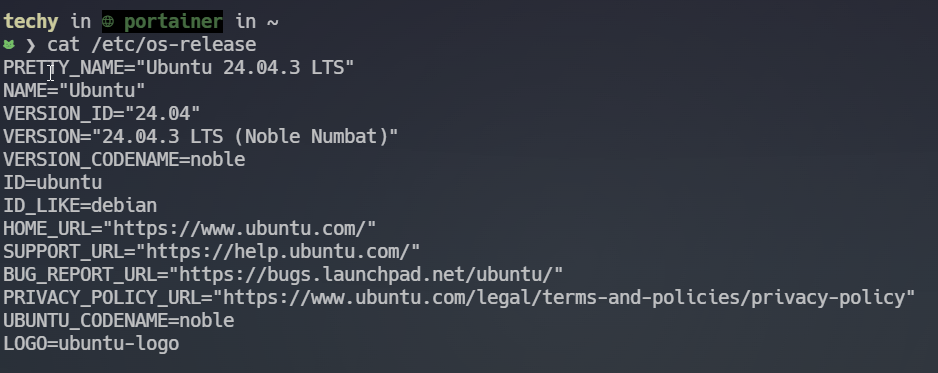
10. echo: Print text to the terminal
In short: Output text or values. Why: Test commands, log info, or write quick content to files.
echo "Hello, world!"echo $HOMEecho -n "No newline after this"echo "data" > file.txt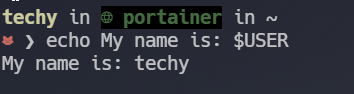
11. Package Managers (common distributions)
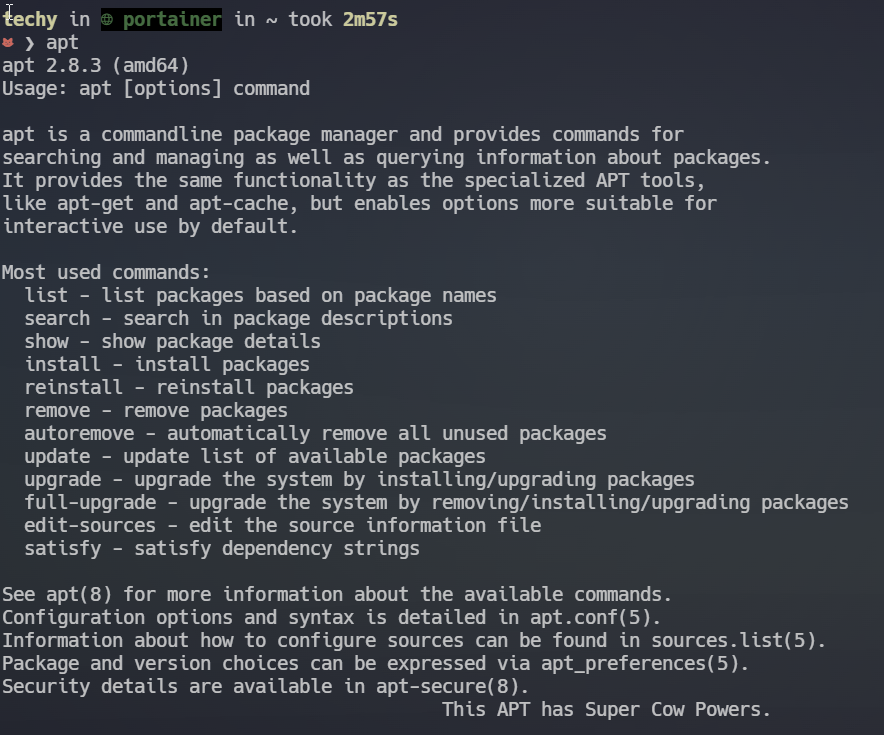
In short: Install, update, and remove software. Why: Safely manage apps and dependencies from trusted repositories.
Debian / Ubuntu (APT)
sudo apt updatesudo apt install package-namesudo apt remove package-nameapt search termFedora / RHEL (DNF)
sudo dnf updatesudo dnf install package-namesudo dnf remove package-nameCentOS (YUM — legacy)
sudo yum updatesudo yum install package-nameArch Linux (pacman)
sudo pacman -Syusudo pacman -S package-namesudo pacman -R package-nameopenSUSE (zypper)
sudo zypper refreshsudo zypper install package-namesudo zypper remove package-nameAlpine (apk)
sudo apk updatesudo apk add package-nameGentoo (emerge)
sudo emerge --syncsudo emerge package/nameFlatpak & Snap (universal)
flatpak install flathub org.example.Appsudo snap install package-name 12. sudo: Run commands as superuser
In short: Run a command with admin rights. Why: Do system-level tasks that a normal user can’t.
sudo commandsudo -isudo -ssudo su -sudo visudosudo -u otheruser command- By default,
sudoasks for your user password (not root's) and logs commands. - Use
visudoto safely edit/etc/sudoers(it checks syntax before saving). - Prefer
sudofor single commands instead of a persistent root shell for safety. - On systems without
sudo, you may need to usesuto switch to root.