


🎮 Getting Started with Steam Gaming
Steam is a popular platform where you can buy, download, and play games on your PC. This guide will walk you through the basics step by step.
← Back to Tutorials🧩 What You Need Before You Start
- 💻 A Windows, macOS, or Linux computer
- 🌐 Internet connection
- 📧 An email address
🔽 Step 1: Download Steam
- Open your web browser.
- Go to the Steam website.
- Click "Install Steam".
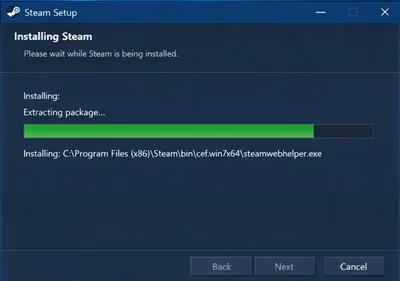
- Download and run the installer.
- Follow the on-screen instructions to finish installing.
👤 Step 2: Create a Steam Account
- Open the Steam app.
- Click "Create a New Account".
- Enter your email and choose a password.
- Verify your email when prompted.
- Sign in to Steam.
🏪 Step 3: Explore the Steam Store
The Store is where you find games. Here's what to look for:
- 🔍 Search bar – find games by name
- ⭐ Top Sellers – popular games
- 🆓 Free to Play – games that cost nothing
Browse categories, check out special deals, and read game reviews from other players.
🛒 Step 4: Buy or Get a Game
- Click on a game you like.
- Read the description and system requirements.
- Click "Add to Cart" or "Play Game" (for free games).
- Complete checkout if required.
⬇️ Step 5: Download & Install the Game
- Go to the Library tab.
- Select your game from the list.
- Click "Install".
- Wait for the download to finish.
You can monitor download progress in the Library. Large games may take some time depending on your internet speed.
▶️ Step 6: Play Your Game
- Once installed, click "Play"
- Adjust settings if needed
- Enjoy gaming! 🎉
Most games will launch directly from Steam. You can adjust graphics and other settings either in-game or through Steam's game properties.
👥 Bonus: Friends & Community
Steam offers social features to enhance your gaming experience:
- 🤝 Add Friends to play together
- 💬 Chat while gaming
- 🏆 Achievements track progress
You can find friends by username, email, or through Steam's friend suggestions. Join communities, participate in discussions, and share your gaming achievements!
❓ Helpful Tips for Beginners
- ⚙️ Check System Requirements before buying to ensure your PC can run the game
- 💾 Enable Auto-Updates to keep your games current automatically
- 🔒 Turn on Steam Guard for enhanced account security
- 🎯 Explore Free Games – Steam has many free-to-play titles to get you started
- 💰 Watch for Sales – Steam has major sales events throughout the year with great discounts
- 📚 Read Reviews – Check user reviews and ratings before purchasing
🎯 You're Ready!
That's it—you're now set up to enjoy games on Steam. Happy gaming! 🎮✨