


📧 Outlook Classic – 0x800704cf Desktop Fix
← Back to Tutorials❗ The Situation
You try to sign into Outlook, Office, OneDrive, or another Microsoft app—and you get this error:
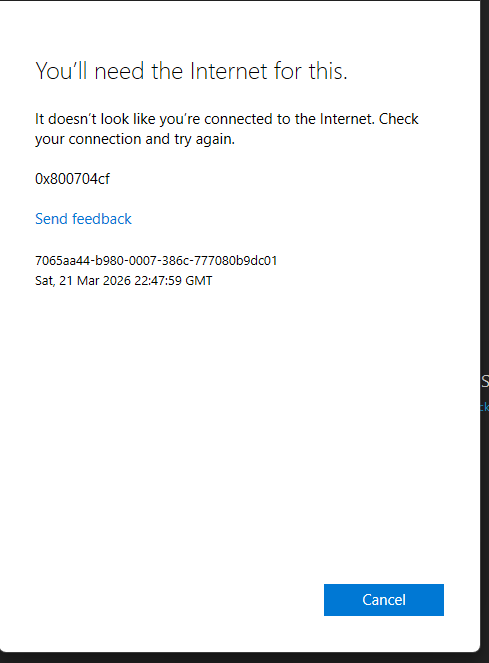
Windows says "It doesn't look like you're connected to the Internet" and shows error code 0x800704cf—even though your connection works fine for browsing, email, and everything else.
🔍 Why This Error Happens
Windows 11 updates (especially around March 2026) can corrupt network stack components and Microsoft identity services. This causes the system to incorrectly report "no internet" even when you're connected. The error code 0x800704cf often indicates a network connectivity or service registration failure—Windows gets confused about your connection state and blocks sign-in.
✅ Why This Fix Works
The fix script resets DNS, Winsock, and TCP/IP; restarts Microsoft account services; and repairs the Outlook sign-in components. This clears the corrupted state, restores proper connectivity detection, and lets Microsoft apps correctly verify your internet connection again.
📋 What to Do – How to Use the Fix Script
First, download Outlook Fix 0x800704cf.zip, then follow these steps:
- Extract this ZIP file to a folder (e.g. Desktop or Documents).
- Close Outlook and any other Microsoft apps (Word, Excel, OneDrive, etc.).
- Find the file
Run-Fix.batand right-click it. - Click "Run as administrator".
- If Windows asks "Do you want to allow this app to make changes?" click Yes.
- Wait for the script to finish (usually 1–2 minutes). You'll see colored messages as it runs.
- When it asks "Restart computer now? (Y/N)" — type Y and press Enter.
- After your computer restarts, try opening Outlook or signing in again.
🔧 If It Still Doesn't Work
- Run the fix again from PowerShell (Run as administrator):
This performs a full network reset. You'll need to restart again..\Fix-Outlook-0x800704cf.ps1 -RunNetworkReset - Reset Microsoft Store: Settings → Apps → Installed apps → Microsoft Store → Advanced options → Reset
- Try a different internet connection (e.g. phone hotspot) to test.
⚙️ What This Fix Does
- Resets your network settings (DNS, Winsock, TCP/IP)
- Repairs Outlook's sign-in popup and identity settings
- Restarts Microsoft account services
- Applies known fixes for the March 2026 Windows update issue
❓ Questions?
This error is often caused by a Windows 11 update. Microsoft is aware of the issue. This fix combines the most effective workarounds reported by users.
⬇️ Download the Fix
Download Outlook Fix 0x800704cf.zip
Also available on the Downloads page under Utility Tool.
✓ All Set
Follow the steps above to resolve the 0x800704cf sign-in error. If you continue to have issues, consider contacting Microsoft Support.